AI Skills Color Expert: Install and Use a Color Science Skill Pack for Better Color Decisions
Quick Answer
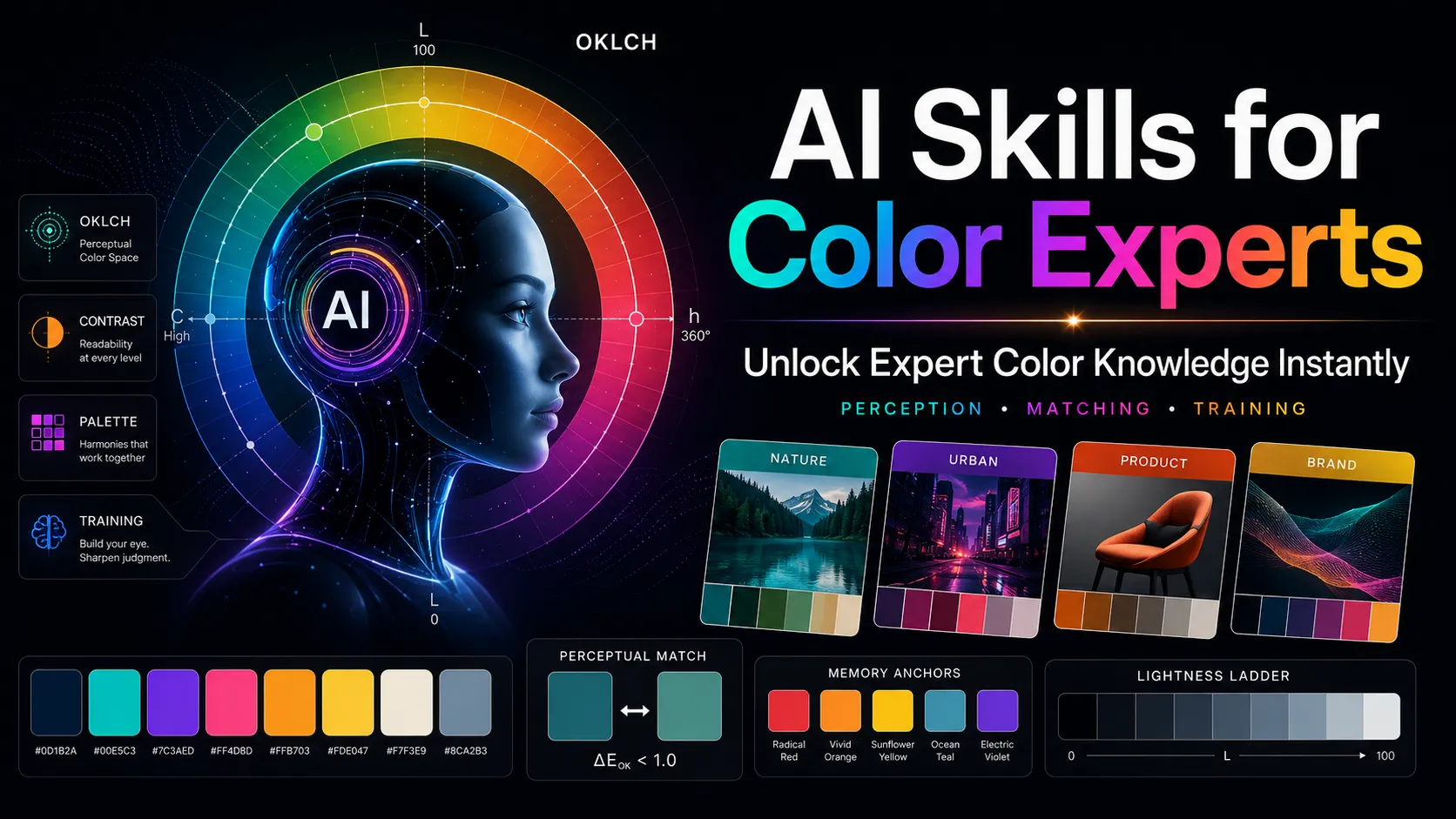
AI Skills Color Expert is an open-source agent skill that gives compatible AI assistants deeper color science knowledge. Instead of relying on generic HSL/HSV advice, it helps an AI reason about OKLCH, OKLAB, Lab, LCH, accessibility contrast, APCA, WCAG, palette generation, pigment mixing, color naming, and historical color theory.
For designers, developers, artists, and Dialed players, the value is simple: your AI becomes much better at explaining why a color feels too bright, too dull, too muddy, too low-contrast, or visually inconsistent.
The fastest way to install it is:
npx skills add meodai/skill.color-expert
This automatically detects supported agents and places the skill in the correct directory. The repository lists support for tools such as Claude Code, Codex, Cursor, Copilot, OpenCode, and other compatible agent environments.
What Is AI Skills Color Expert?
color-expert is a specialized AI skill for color-related tasks. It gives an agent a structured knowledge base for answering questions about color perception, palette design, accessibility, color conversion, pigment behavior, and design-system color ramps.
It is especially useful when you want answers that go beyond basic color-picker logic. Most generic AI responses still fall back on simplified ideas like:
- “Use HSL to adjust lightness.”
- “Increase saturation to make the color pop.”
- “Blue feels calm and red feels energetic.”
- “Use complementary colors for harmony.”
Those shortcuts can be useful, but they often fail in serious color work. HSL lightness is not the same as perceived brightness. Saturation is not the same as chroma. Equal hue steps do not always look equally different. A palette that looks balanced in numbers may still feel uneven to the human eye.
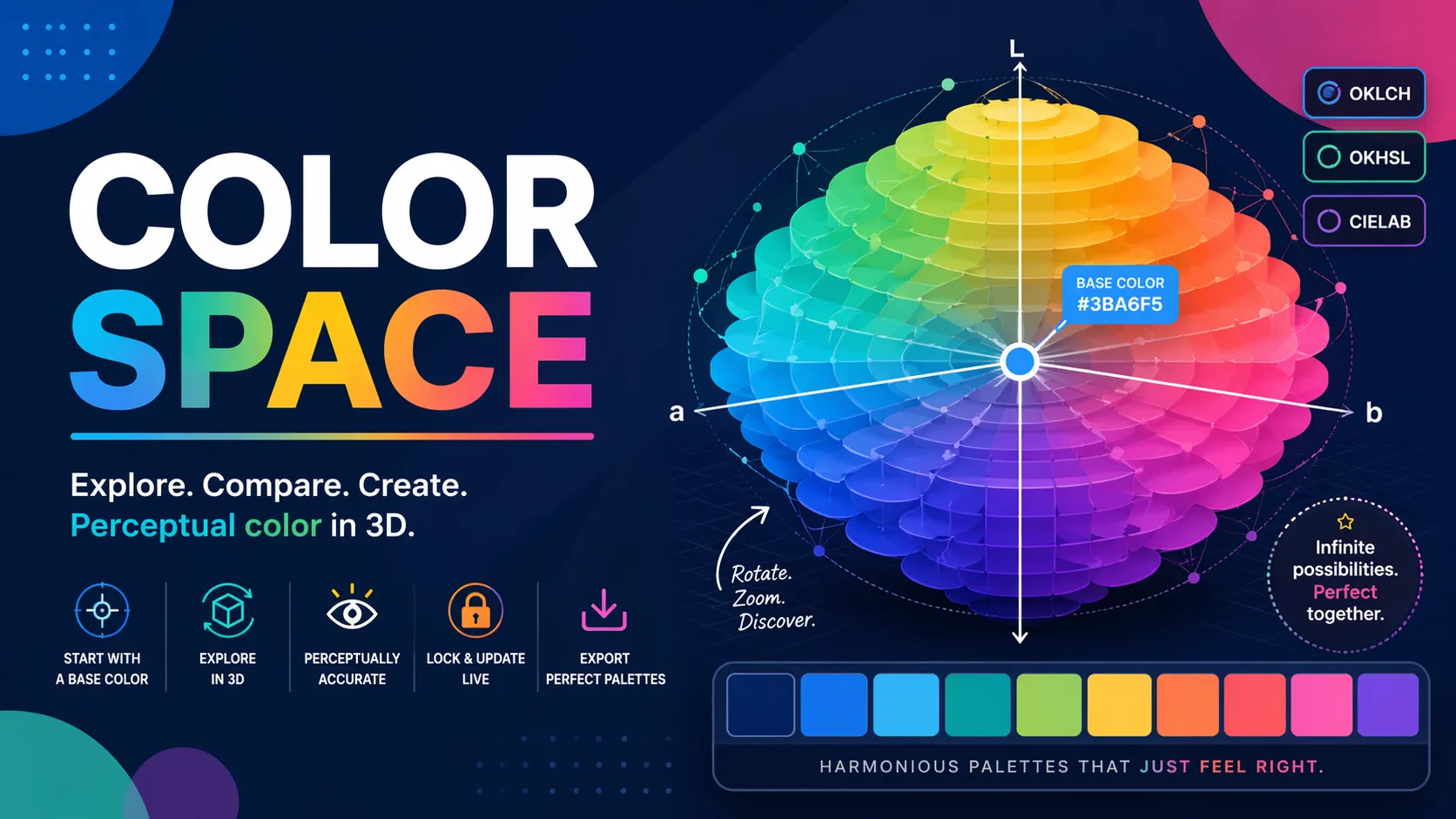
The color-expert skill helps the AI reason with more modern concepts such as perceptual lightness, chroma, OKLCH ramps, APCA contrast, display-vs-print differences, and paint-like mixing.
Why This Skill Matters
Color decisions are easy to make badly because human vision is not linear.
A yellow and a blue can share the same HSL lightness value, yet the yellow appears much brighter. A dark blue can be mathematically saturated but still feel visually muted. A gradient that looks smooth in RGB or HSL can become muddy in the middle. A text color that passes a simple contrast check may still feel weak in real interface conditions.
That is where a specialized color skill helps. It gives your AI a better foundation for questions like:
- Why does this color look brighter than its numbers suggest?
- Why does my gradient lose energy in the middle?
- How do I build a perceptually even 9-step palette?
- Should I use OKLCH, Lab, HSL, RGB, or CAM16 for this task?
- How do I check accessibility for light and dark themes?
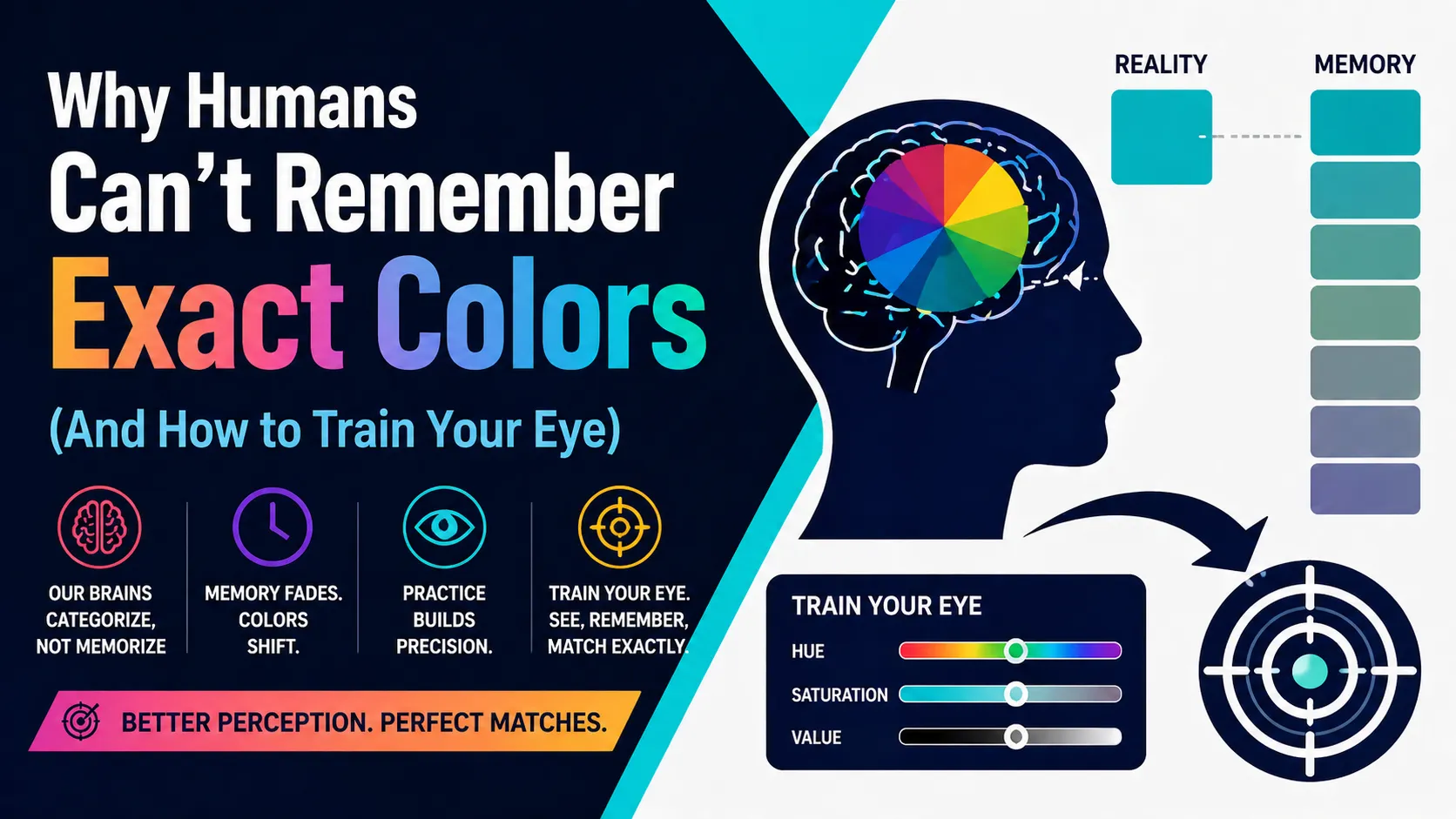
- Why does this teal feel wrong when I try to match it from memory?
For Dialed players, this is especially useful because the game is about color memory, not just slider control. The skill can help explain whether a miss came from hue drift, lightness drift, chroma drift, or background/context effects.
Installation Guide
Option 1: Recommended Installation
Use the official skills installer:
npx skills add meodai/skill.color-expert
This is the easiest method because it automatically detects supported agents and installs the skill into the correct location.
Use this method if you are using tools such as:
- Claude Code
- Codex
- Cursor
- Copilot
- OpenCode
- other compatible agent environments
After installation, restart or reload your AI agent if it does not detect the skill immediately.
Manual Installation
If you prefer manual setup, clone the repository first:
git clone https://github.com/meodai/skill.color-expert ~/Sites/color-expert
Then create a symlink into your agent's skills directory.
Claude Code
ln -s ~/Sites/color-expert ~/.claude/skills/color-expert
Codex
ln -s ~/Sites/color-expert ~/.codex/skills/color-expert
OpenCode
ln -s ~/Sites/color-expert ~/.agents/skills/color-expert
Project-Level Installation
For a project-level setup, place or symlink the skill here:
.agents/skills/color-expert
This is useful when you want the skill to travel with a specific project, design system, website, or color-tool repository.
Updating the Skill
If you installed it through the skills tool, update with:
npx skills update
If you installed it manually, update the cloned repository:
cd ~/Sites/color-expert && git pull
Updating is useful because the repository may improve references, examples, compatibility notes, and skill behavior over time.
How To Use It
Once installed, you usually do not need to call the skill manually. The agent should activate it when your request involves color naming, palette generation, color spaces, accessibility, contrast, pigment mixing, or color explanation.
You can trigger it naturally with prompts like:
Use the color-expert skill to explain why this palette feels muddy.
Build a 9-step OKLCH accent scale for a dark-mode UI.
Compare #3A9C8F and #2F8F82. Tell me whether the difference is mostly hue, chroma, or lightness.
Create a perceptually even color ramp around teal for a Dialed practice exercise.
Check this foreground/background pair using modern accessibility thinking, including APCA and WCAG considerations.
Practical Use Cases
1. Color Perception Explanations
Ask questions like:
Why does #FFFF00 look much brighter than #0000FF even when both are 50% lightness in HSL?
The skill helps the AI explain that HSL lightness is not perceived brightness. It can also explain how human vision responds differently to yellow, blue, green, and red.
2. OKLCH Palette Generation
For design systems, ask:
Create a 9-step OKLCH blue scale for light and dark mode. Keep perceived lightness transitions even and avoid muddy mid-tones.
This is stronger than asking for a generic HSL palette because OKLCH is better suited for perceptual color manipulation.
3. Accessibility and Contrast
For UI design, ask:
Check whether these text and background colors work for accessibility. Explain the result using WCAG and APCA.
The skill helps the AI avoid shallow contrast advice and think about real readability, light/dark mode, foreground/background relationships, and component usage.
4. Dialed Color Memory Training
For Dialed players, ask:
Give me five narrow-band teal colors in OKLCH for memory training. Include HEX values and explain how each one differs in lightness and chroma.
Or after a round:
Original: #2FAE9A. My guess: #3A9C8F. Explain what I missed and give me a memory anchor.
This turns a failed color match into a useful training exercise.
5. Brand and Visual Identity Work
For logo or brand systems, ask:
Build a brand palette for a playful color-learning game. Use OKLCH for the main ramp and include accessible text pairings.
The skill can help separate mood, contrast, color harmony, and technical implementation instead of giving only aesthetic suggestions.
Common Mistakes To Avoid
Mistake 1: Treating HSL as Perceptual Truth
HSL is convenient, but it is not perceptually uniform. Equal lightness values can look very different across hues.
Mistake 2: Confusing Saturation with Chroma
A color can be high-saturation but still look visually heavy or muted if it is dark. Chroma is usually a better concept when discussing perceived color intensity.
Mistake 3: Asking for Generic Palettes
A prompt like “give me a nice color palette” often produces generic results. Better prompts include purpose, medium, background, mood, accessibility needs, and target color space.
Better prompt:
Use color-expert to create a 7-color OKLCH palette for a browser game about color memory. It should work on dark backgrounds, feel vivid but not neon, and include accessible text colors.
Mistake 4: Ignoring Context
Colors change appearance depending on surrounding colors, background brightness, display conditions, and contrast. Always include context when asking for color help.
Mistake 5: Using One Model for Every Job
OKLCH is excellent for many perceptual UI tasks, but it is not the answer to everything. Pigment mixing, print workflows, HDR, and cross-media matching may require different models or methods.
Best Prompt Templates
For Palette Design
Use the color-expert skill. Create a perceptually balanced OKLCH palette for [project]. Include HEX, OKLCH values, usage roles, and accessibility notes.
For UI Color Tokens
Use color-expert to build a design-token color system with reference tokens, semantic tokens, and component usage. Include light and dark mode.
For Contrast Checking
Use color-expert to evaluate these foreground/background pairs. Explain WCAG and APCA implications, then suggest safer alternatives.
For Dialed Training
Use color-expert to create a Dialed practice drill around [hue family]. Give me 10 colors, memory anchors, and what to watch for in hue, chroma, and lightness.
For Color Difference Analysis
Use color-expert to compare these two colors: [color A] and [color B]. Explain the perceived difference in hue, chroma, and lightness, then describe how a human player might misremember it.
Final Take
AI Skills Color Expert is not just a palette helper. It is a practical color-science layer for AI agents. It helps bridge the gap between numeric color values and real human perception.
Install it if you work with design systems, accessibility, generative art, palette generation, color naming, paint-like mixing, or color memory games like Dialed.
The biggest benefit is accuracy. Instead of generic advice like “increase saturation” or “make it lighter,” you can ask your AI to reason in terms of perceived lightness, chroma, hue drift, OKLCH ramps, APCA contrast, and visual context.
That makes color work less random, less subjective, and much easier to improve over time.
Continue Reading
More guides, comparisons, and explainers related to the same games and topics.

Related Games
Browse games connected to the ideas, mechanics, or categories covered in this article.